

Interactive Exhibition Kiosks: Design the Visitor Session and Recovery
Follow a complete kiosk visit from the first touch to a clean reset, with practical tests for abandonment, offline use, physical accessibility and staff-led recovery.
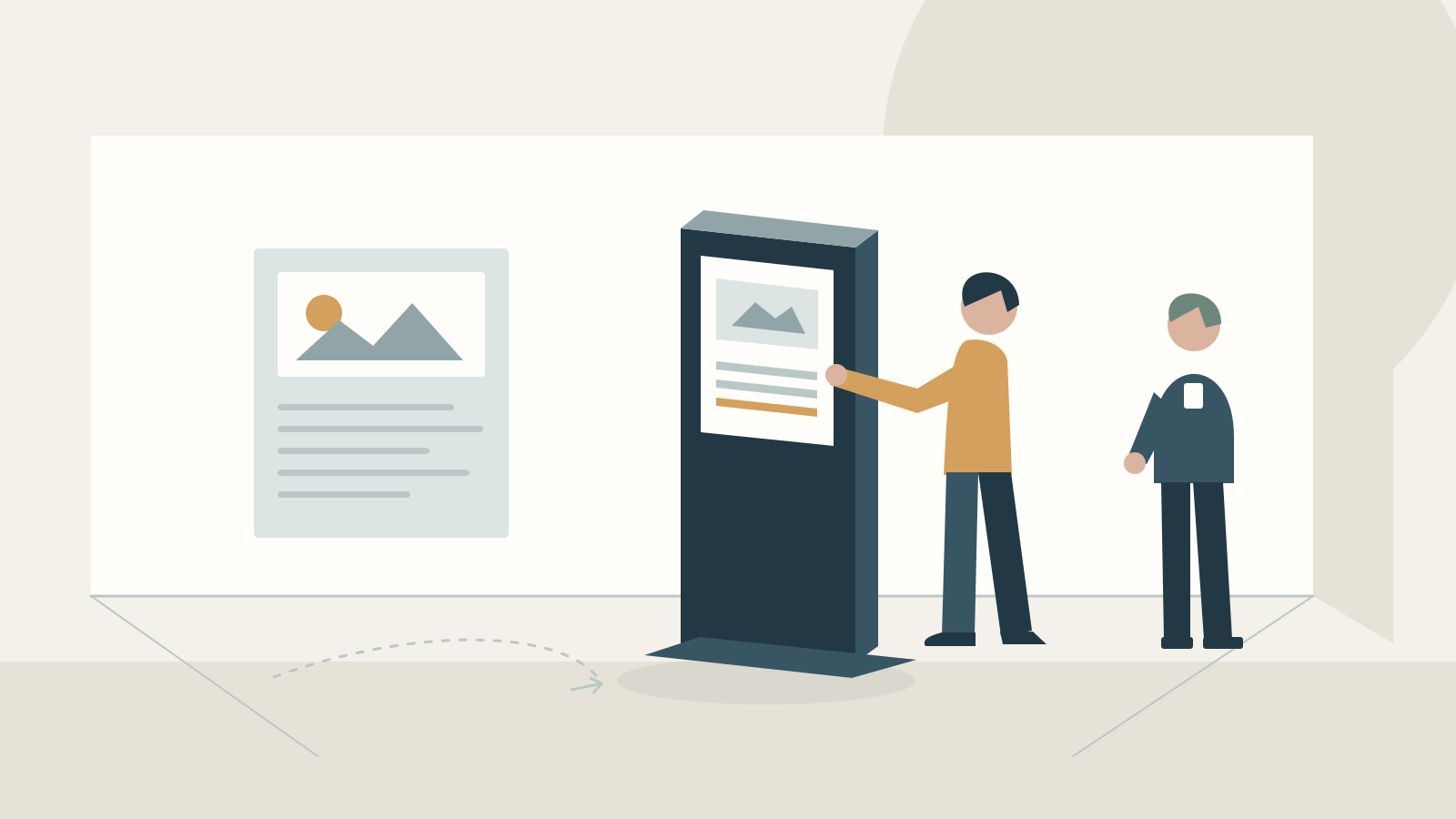
- Define a complete visitor task, including its result, exit and clean start for the next person.
- Treat abandonment and network loss as designed states with testable behaviour.
- Test the installed kiosk with representative users; button size alone cannot establish accessibility.
- Give staff an approved recovery sequence and verify it before opening.
Start with one session you can rehearse
A kiosk can look finished while leaving basic operating questions unanswered. What tells a visitor to begin? What happens if they leave halfway through? Can the next person see their choices? Which information survives a network failure?
Define a complete session before approving the interface. A useful session specification names the starting state, visitor choices, useful result, exit and reset. It also describes what staff should do when that path breaks.
Consider a hypothetical exhibition about three workplace layouts. Visitors compare options and leave knowing which display to explore next. No contact details are required for that core task. The walkthrough below is a design example, not a claim about an existing installation or guaranteed visitor throughput.
Walk through the first visit, screen by screen
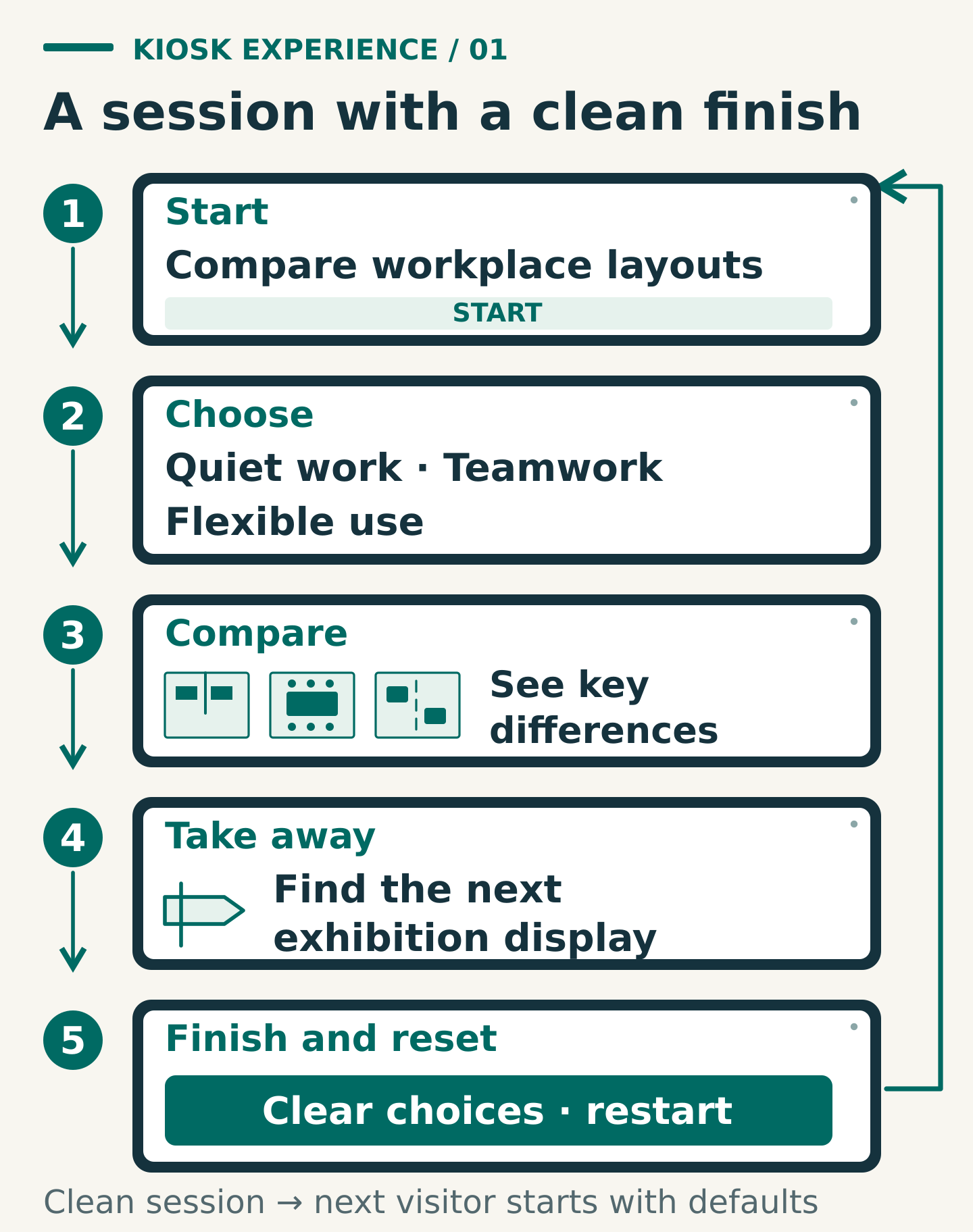
- Attract: The idle screen says “Compare three workplace layouts” and offers “Start”. A quiet preview shows the subject without making visitors wait for a film to end.
- Choose: The visitor sees “What matters most?” with clearly labelled options: “Quiet work”, “Teamwork” and “Flexible use”. Help explains the choices; Back and Start again remain easy to find.
- Compare: Selecting “Quiet work” opens a short comparison of the three layouts. The interface explains why a feature matters rather than announcing an unexplained winner. Further detail is optional.
- Take away: A result screen identifies the relevant exhibition display and provides a short summary. A QR code may open the general information page, alongside a readable address and an on-screen summary.
- Finish: “Finish and reset” clears the temporary choices and returns to the starting state. It does not leave the completed result on screen for the next visitor.
Rehearse this without coaching the participant. Note hesitation, wrong turns and whether they can explain the result. Measure the actual range of session times, including group discussion and people who need longer. Use that evidence for staffing and queue planning; a designed sequence does not guarantee a fixed number of visitors per hour.
Specify an abandoned-session path without rushing readers
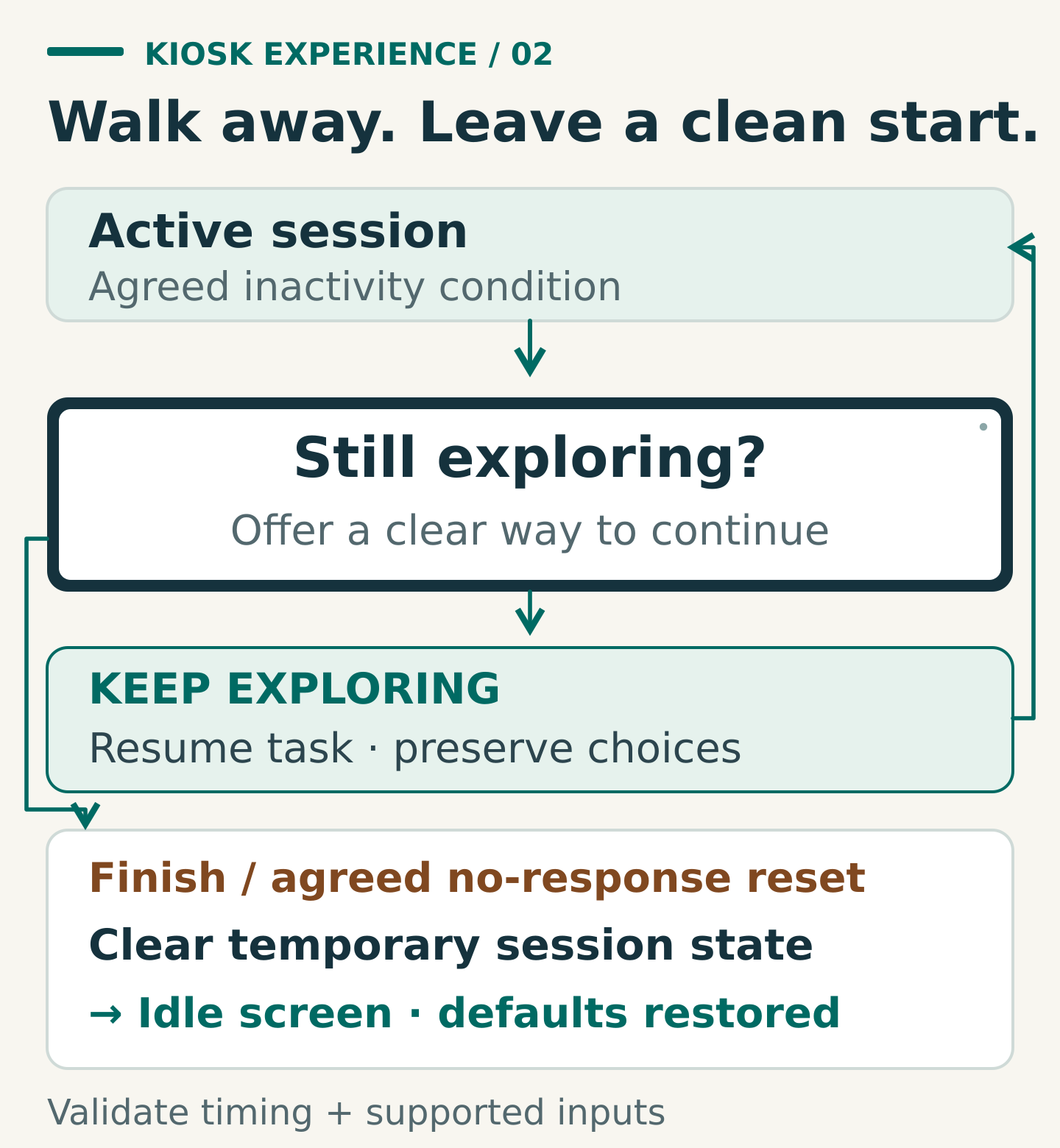
A visitor may walk away from any screen. Define what counts as inactivity and test it while someone is reading, watching media or using an alternative input method. Do not confuse a lack of touches with a lack of engagement.
For this example, an agreed period of inactivity triggers “Still exploring?” with “Keep exploring” and “Finish and reset”. Continuing preserves the current choices. Finishing, or reaching the agreed reset condition without a response, clears temporary session state and returns to the idle screen. A new Start must begin with defaults.
Choose the timing behaviour as part of the accessibility and privacy design. For web-based content, WCAG's Timing Adjustable criterion provides routes to turn off, adjust or extend content-imposed limits, subject to specified exceptions. Showing a warning alone is not the full requirement. Review the applicable route in W3C's timing guidance.
Test Back, history, reopened screens and a restart: none should reveal a previous visitor's session. If a future version collects personal information, commission a separate privacy and data-handling review; returning to the home screen is not evidence that data was cleared.
Decide what still works when the connection disappears
For the example kiosk, package the approved core text, images and comparison locally. Agree how the installed application starts offline and which approved content version it shows. Test that behaviour after a cold restart, not only after pages have already loaded.
List each network-dependent feature separately. A live availability feed might show “Live updates are unavailable. Ask the exhibition team for the latest information.” The core comparison should remain usable if that is the agreed fallback.
If an optional message or enquiry cannot be sent, show its true state. Do not display “Sent” without confirmation. Any queued submission needs an agreed storage, retry and duplicate-prevention design; hiding a queue behind a success screen is not a solution.
Also test a slow connection and an unavailable upstream service. After recovery, verify the feature and content state before removing the notice. A QR code cannot serve as the only fallback: visitors may have neither a suitable phone nor a working connection.
Test the physical station as well as the interface
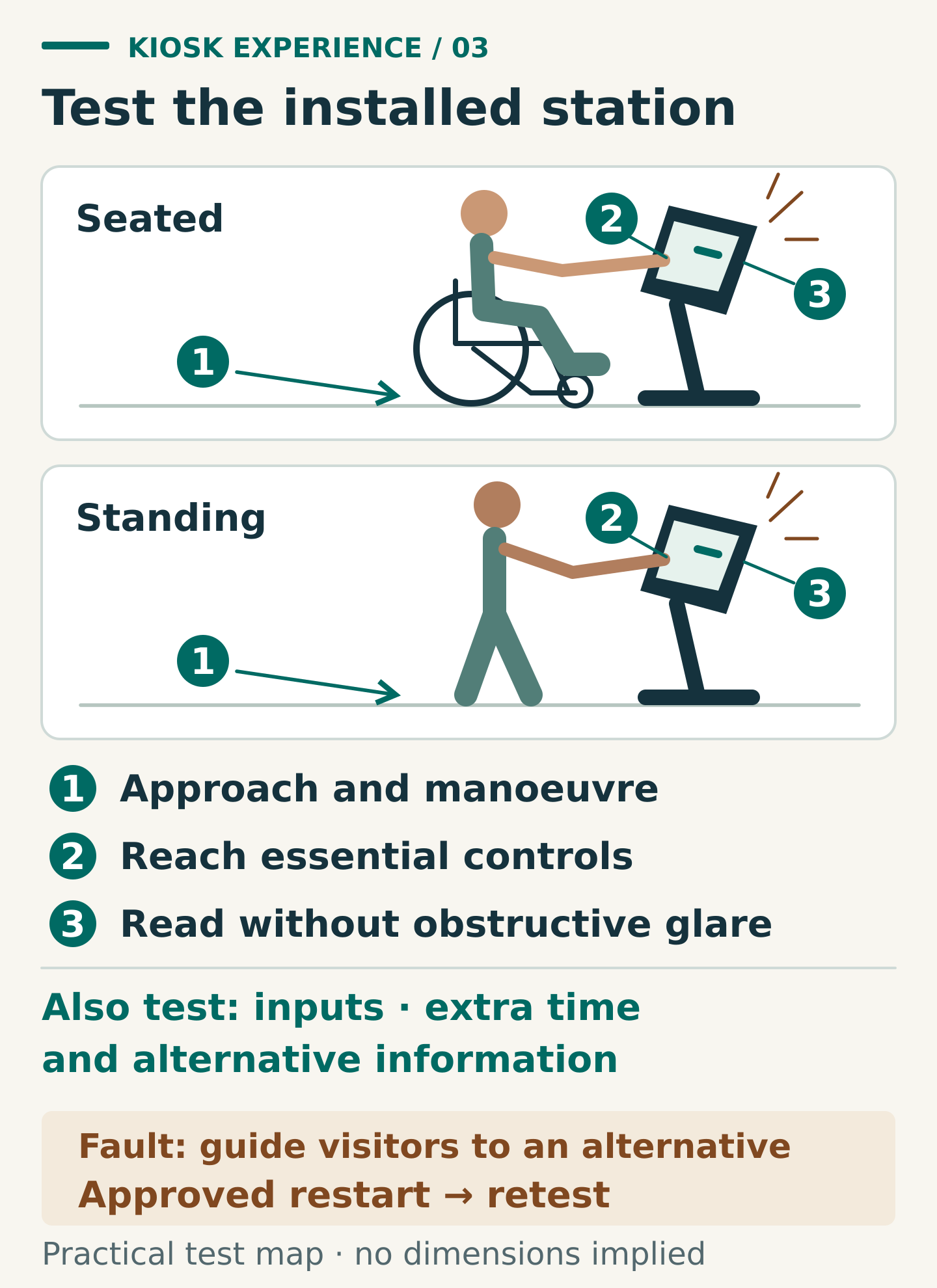
Run the session on the installed hardware, at its actual height, angle, scale and lighting. Include representative disabled participants and suitable accessibility expertise. A laptop preview cannot establish whether visitors can approach, reach and operate the station.
Check the full task from seated and standing positions. Can visitors reach Start, Back, help, the lowest choices and the timeout prompt without awkward stretching? Check knee and approach space, glare, readable text, touch accuracy and the venue's circulation route with the installation team. Agree relevant physical-access requirements rather than borrowing a single dimension from an unrelated project.
For web interfaces, WCAG 2.2's Target Size (Minimum) criterion uses a 24-by-24 CSS-pixel minimum with specified exceptions, including spacing. These are CSS pixels, not a mounting-height rule or a universal physical button size. Larger controls may still be appropriate. See W3C's target-size guidance.
Target size alone does not establish conformance or an accessible kiosk. Test the available input methods, focus behaviour, labels, contrast, audio alternatives and time limits. Provide an agreed alternative for essential information, such as an accessible web version and a staff-assisted route, and rehearse how visitors find it.
Give the operating team a short recovery card
The handover should name a duty owner and an escalation contact, plus the approved restart method for that installation.
- Before opening: Confirm the approved content version; complete one session; check sound or captions where used, touch response, reset and fallback information.
- When a fault occurs: Guide visitors to the alternative route. Record the screen, time, station identifier and symptom without copying personal information.
- Recover: Follow the supplier-approved application restart sequence. Escalate if the same fault returns; do not ask floor staff to improvise system changes.
- Before reopening: Verify the clean starting state and repeat the affected task. “The screen is on” is not the acceptance check.
- At close: Follow the agreed shutdown and data-handling procedure, and leave unresolved faults with a named owner.
Accept the experience against observable scenarios
Keep these scenarios in the sign-off record, with actual result, evidence, tester, date and outstanding issue owner:
- New visitor: Start from idle, change a choice, view a result and finish. The expected next display is clear; the following visitor receives defaults.
- Walk-away: Leave at each interactive step. The agreed warning and reset occur, with no previous choices recoverable by the next visitor.
- More time needed: Continue from the warning using each supported input method. The session remains intact and the agreed timing behaviour works.
- Network unavailable: Disconnect during the task and restart offline. Agreed local content works; unavailable functions explain their state accurately.
- Physical access: Complete the core task from the agreed test positions and input methods. Record any blocked reach or alternative-route failure.
- Application fault: Rehearse the approved recovery procedure with staff. Reopening requires a clean session and a successful repeat of the failed task.
Do not sign off unresolved failures that block the core task, expose a previous session or leave staff without a workable recovery route. Share the session map and acceptance scenarios with Miracle when discussing an interactive exhibition project.
Frequently asked questions
How long should a kiosk session take?
Set a planning target for the specific visitor task, then test it with representative users. Allow for reading, discussion and accessibility needs rather than using one duration as a throughput guarantee.
Should the kiosk reset after a fixed period?
Specify and test the inactivity behaviour alongside accessibility and privacy requirements. Visitors may need a way to continue, and every reset must genuinely clear the temporary session state.
Can we approve the kiosk before it is installed?
You can review content and software earlier, but reserve final acceptance for the real hardware, installation conditions, accessibility checks and staff recovery rehearsal.
Planning something similar?
Talk to Miracle