

Event LED Walls and Presentation Videos: An AV Handover Checklist
Prepare event videos, presentation decks and LED-wall content for reliable handover. Clarify screen specifications, file versions, playback cues, rehearsal checks and the final show copy.

- Get the actual display and playback specification before designing final content.
- Deliver a file manifest and a cue sheet, with different information in each.
- Test the approved files on the show system, then control every subsequent change.
Before handing over event videos and slides, collect the confirmed screen plan, export requirements and cue sheet. Then test the approved files through the actual playback system.
A file can look finished on an editor’s monitor while leaving show-day questions open. Which screen zone does it fill? Who starts it? What appears when it ends?
Use this checklist to connect content approval with playback readiness, from the first screen template to the locked show copy.
1. Confirm the screen canvas and content zones
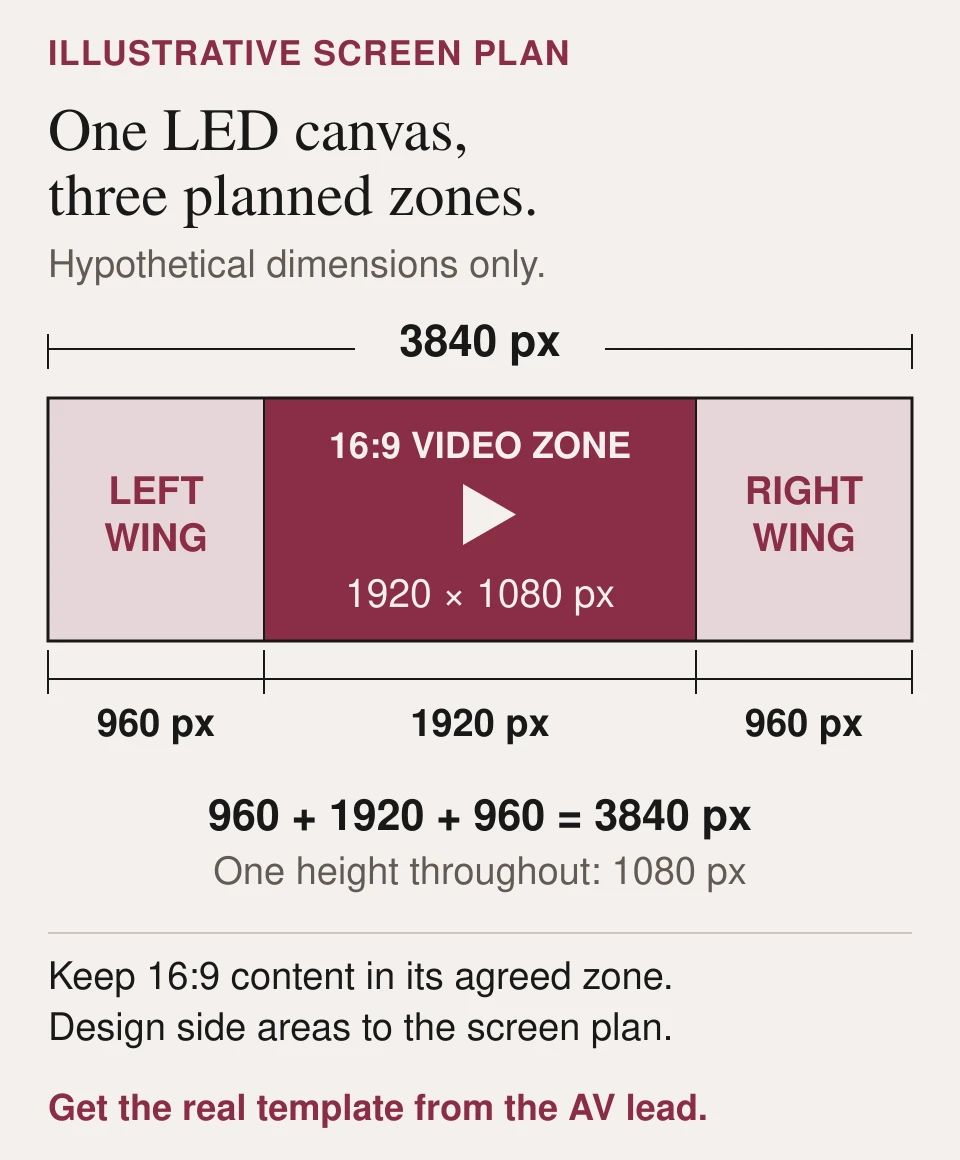
Ask the AV lead for a written screen plan showing the final content canvas in pixels and the intended viewing arrangement. Identify the main presentation area, side panels, sponsor areas and any other regions that need separate content.
Do not assume that a wide LED installation uses the same layout as a standard presentation screen. Ask how a conventional landscape video will be handled: displayed within a defined area, surrounded by a branded background or reformatted into a custom composition.
LED processing configurations depend on the system. Brompton's project-management documentation, for example, includes selecting a canvas size and model-specific custom-resolution options. The event's actual specification should come from its AV team.
Request a labelled template for the content team and a test image before final animation. Mark areas that must remain clear for a live camera feed, speaker position or on-screen captions.
2. Agree export requirements for each asset
Create a technical specification for videos, still images, presentation decks and any live inputs. Ask the operator to confirm the accepted file format, resolution, frame rate, audio arrangement and any other settings required by the playback system.
Record whether each asset is full-screen, fitted within a content zone or composited with other material. Confirm whether it needs sound, transparency, a seamless loop, a held opening frame or a defined end state.
For videos played inside PowerPoint, Microsoft recommends MP4 files using H.264 video and AAC audio in its supported-format guidance. That recommendation does not replace the specification for a dedicated event playback system. Test against the software and hardware that will actually be used.
Keep the creative preview separate from the delivery master. A compressed review file should not become the show file simply because it is the easiest attachment to find.
3. Check presentation decks as carefully as films
Ask presenters to submit decks in time for a technical review. Confirm slide dimensions, videos, audio, fonts, animations, hyperlinks and any live websites or demonstrations.
Microsoft distinguishes embedded and linked video: embedded media increases presentation size, while linked files require their references to remain intact. The handover should make clear which method the deck uses and include everything needed for playback.
Font handling needs a check too. Microsoft's font guidance notes that embedding can help preserve appearance, but not every font permits it. Test Chinese and English text on the playback computer, including line breaks, punctuation and less common characters.
Where appropriate, prepare a static fallback for essential information. Agree what can be simplified if a live demonstration or animation cannot run, rather than improvising the alternative in front of guests.
4. Create a file manifest and a cue sheet
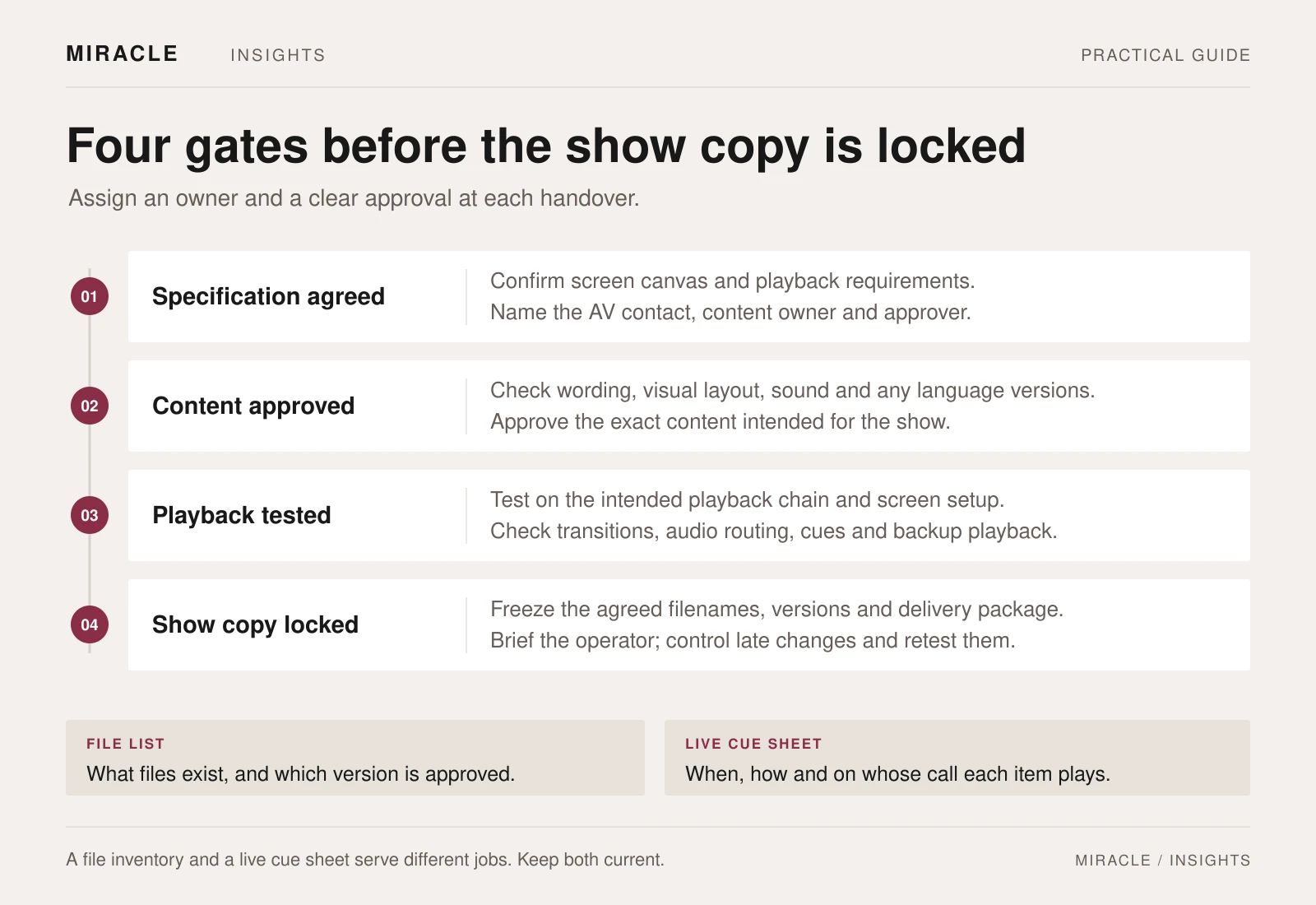
The file manifest identifies the assets. For each item, record:
- Asset ID and exact filename
- Version and approval status
- Duration or slide count
- Intended screen or content zone
- Audio present or absent
- Content owner and technical contact
The cue sheet tells the operator how those assets behave during the show. Record the cue number, trigger, playback instruction, end state and person calling the cue.
For example, a hypothetical opening film could be asset V01. Its cue might read: “On the show caller's instruction, play V01 with audio; at the end, switch to the welcome slide and wait.” The approved filename sits in the manifest, while the live action sits in the cue sheet.
Use short, consistent names and avoid a folder full of files labelled “final”. Remove superseded versions from the active show folder while keeping a separate archive.
5. Rehearse the transitions and the exceptions
During technical rehearsal, run the actual files through the intended playback path. Check the whole sequence, including what appears before and after each asset.
Review text from relevant audience positions. Check crops, content-zone boundaries, captions, audio starts and endings, and the handover between video and live microphones. If the event is being filmed, include the camera team in checks involving the screens and stage lighting.
Test the agreed fallback procedure. Who calls the change? What holding slide appears? Which operator switches to the backup source? Is the replacement content available locally if the network is unavailable?
Record any failed checks with an owner and a resolution deadline. After a corrected file arrives, retest that file and the affected transition. A successful test of an earlier version does not establish that the replacement is ready.
6. Lock and distribute the show copy
Once the content and playback checks are complete, identify one approved delivery set. Record its version and the time it was released to the show team.
Name the person who can accept late changes. Every replacement should include the reason for the change, affected cue numbers, approval and confirmation that the operator has received it. Avoid sending different versions directly to different crew members.
Agree where the primary and backup copies are held, who can access them and who owns the post-event archive. If the event recording or later online release needs different captions, music use or screen layouts, treat those as separate deliverables.
Miracle's event management and production service and video production service provide useful starting points for discussing the content and on-site requirements together.
Prepare a clear content handover
Include the screen plan, programme, available videos and decks, AV contact and rehearsal date. Flag custom LED layouts, language versions and live inputs so the delivery plan can address them early.
Frequently asked questions
Can we use our existing corporate video on an LED wall?
Possibly. Give the AV and creative teams the original file and the screen plan. They can assess whether it fits a defined content area or needs a separate event version.
Is sending a PowerPoint file enough?
Check its fonts, linked media, playback settings and external dependencies. The operator also needs the approved version, presentation order and cue instructions.
When should content be finalised?
Agree the content deadline around the technical rehearsal and the time required for corrections. Keep a clear exception process for unavoidable late changes.
Who gives the final approval?
Assign a content approver and a technical acceptance owner. Both approvals are needed: one confirms what guests will see, and the other confirms that the agreed files have passed playback checks.
Planning something similar?
Talk to Miracle