

Corporate Website Enquiry Forms: Ask Less, Learn What Matters
Decide what to ask, improve the first conversation and test what happens after Send. Includes a worked form redesign, field checklist and reusable team brief.
- Ask for the information needed to make the first useful reply; justify every required field.
- Give early-stage visitors a way to answer honestly with optional details or a planning-stage choice.
- A button click, an accepted enquiry record and a delivered email are separate events.
- Accept the form only after testing recovery, accessibility, notification failures and ownership.
Start with the first useful reply
A procurement manager opens your website on a phone. They know the problem they need to solve, but not the product code, final budget or installation date. Your enquiry form requires all three. What should they enter?
This is a useful place to begin a form review. A visitor should be able to explain a genuine need without inventing a finished brief. Your colleague should receive enough context to decide what to do next.
Bring the person who answers enquiries into the review. Together, complete this sentence: “After reading this submission, we need to be able to _____.” For a general B2B enquiry, the answer might be to identify the right specialist and ask a useful follow-up question. Design the form around that next step.
Give every required field a reason
Review each field using three questions:
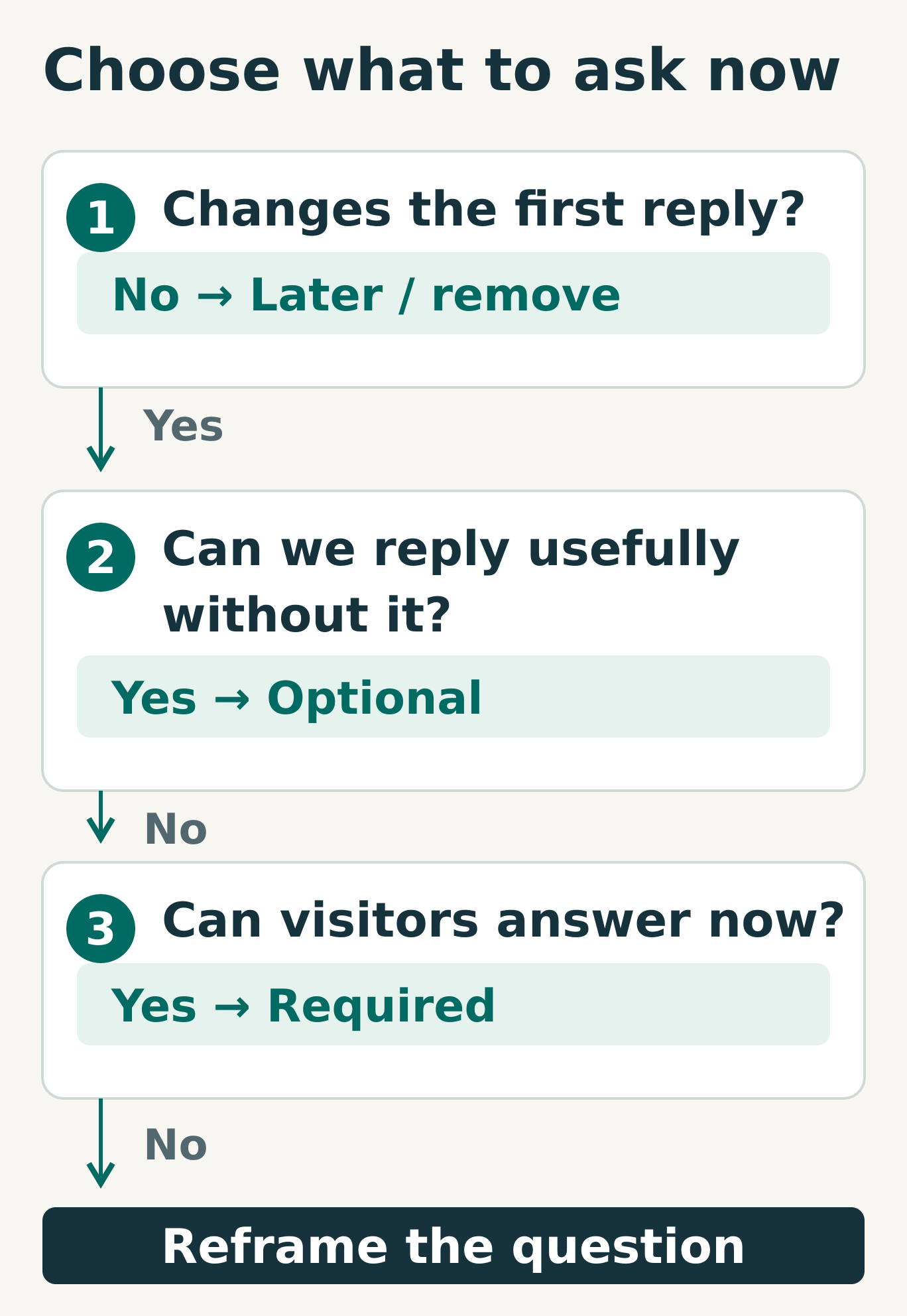
- Does the answer change the first reply? If it only becomes useful during quotation or onboarding, ask later. Remove it if nobody uses it.
- Could we still reply usefully without it? If yes, make it optional.
- Can a typical visitor answer it now? If no, offer a broader question, a “Not sure” option or a follow-up conversation.
Only make a field required when it survives those checks. Apply the decision to the actual service:
- Reply email: required for an email-first enquiry.
- Company name: optional unless it is genuinely needed to route or assess this request.
- Telephone: optional for an email reply; request it when someone chooses a callback.
- Service category: useful when categories have different owners. Give “Not sure” a real destination.
- Budget and timing: ask for ranges or a planning stage when precision is unnecessary.
For each required field, write its purpose beside it in the review document. “Sales might want it” needs a more specific explanation.
A worked example: help the buyer describe the need
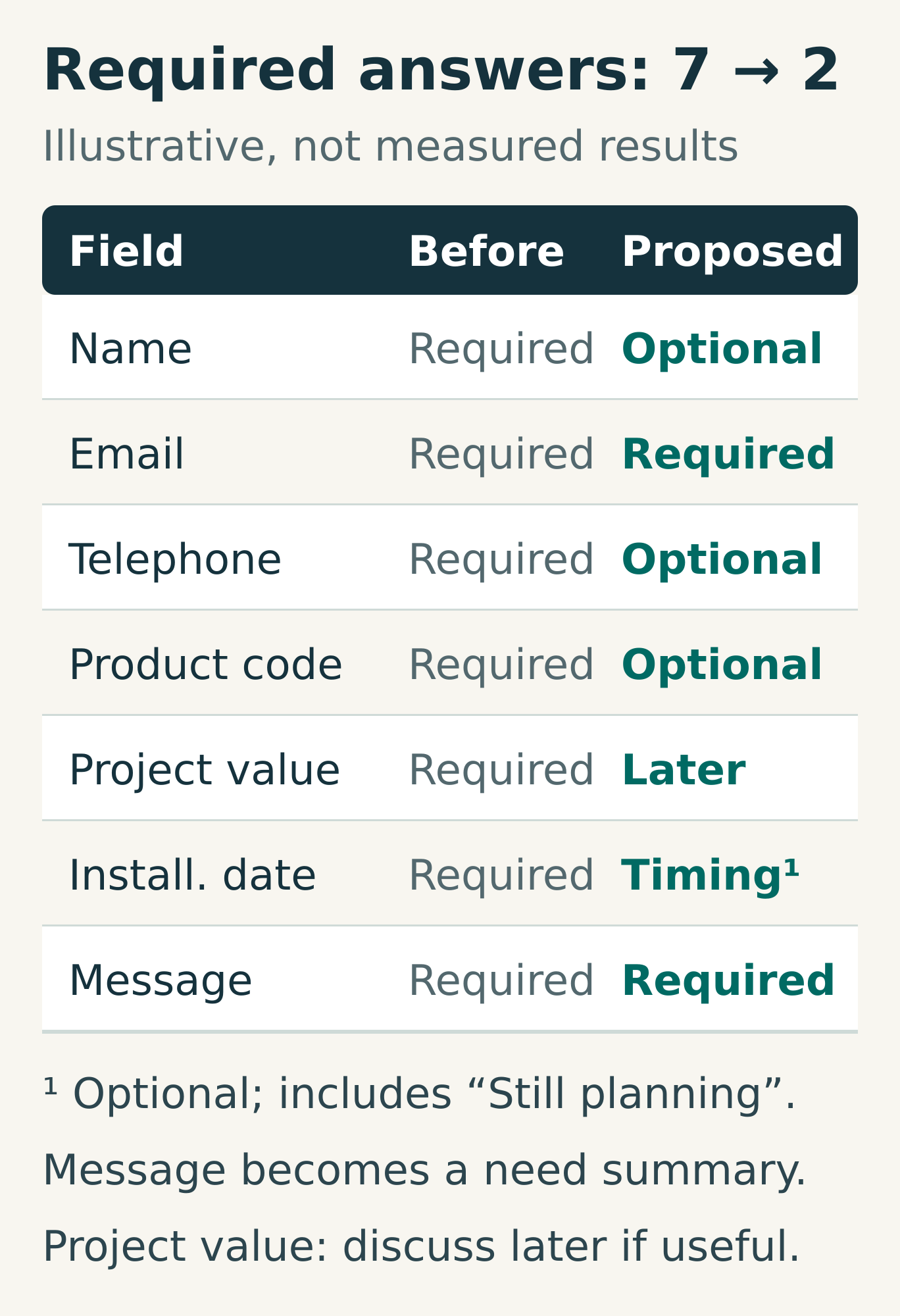
Imagine a Hong Kong engineering supplier receiving early-stage enquiries. Its current form requires a name, email, telephone number, product code, project value, installation date and message.
The team agrees that a reply email and a description of the need are enough to begin. A proposed revision keeps those two required. Name, telephone and product reference become optional. “Installation date” becomes an optional timing question, including “Still planning”. Project value moves to the follow-up conversation when relevant.
The message prompt becomes: “Tell us what the equipment needs to do, where it will be used and anything you already know about timing.”
This illustrative redesign reduces the required answers from seven to two. It is not a client result or a conversion forecast. Test whether the revised enquiries still let the team give a useful first reply before adopting the same choices elsewhere.
Write the help before someone needs it
Keep a visible label above each field and connect it to the control in the page code. A placeholder that disappears during typing is a poor place for essential instructions. W3C explains both label associations and form instructions.
Mark required and optional fields consistently. For uploads, show the accepted file types and size limit before selection. For bilingual forms, review the instructions, errors and confirmation in both languages.
Give errors a clear correction. Replace “Invalid input” with, for example, “Enter an email address in the format name@example.com.” Identify the affected field in text; a red outline alone is insufficient. Keep the other entries while the visitor corrects the problem. W3C’s error guidance and notification examples are useful implementation references.
A click, a saved enquiry and an email are different events
Agree what “received” means before writing the confirmation. For this review, use a server-confirmed enquiry record that the team can retrieve as the acceptance point.
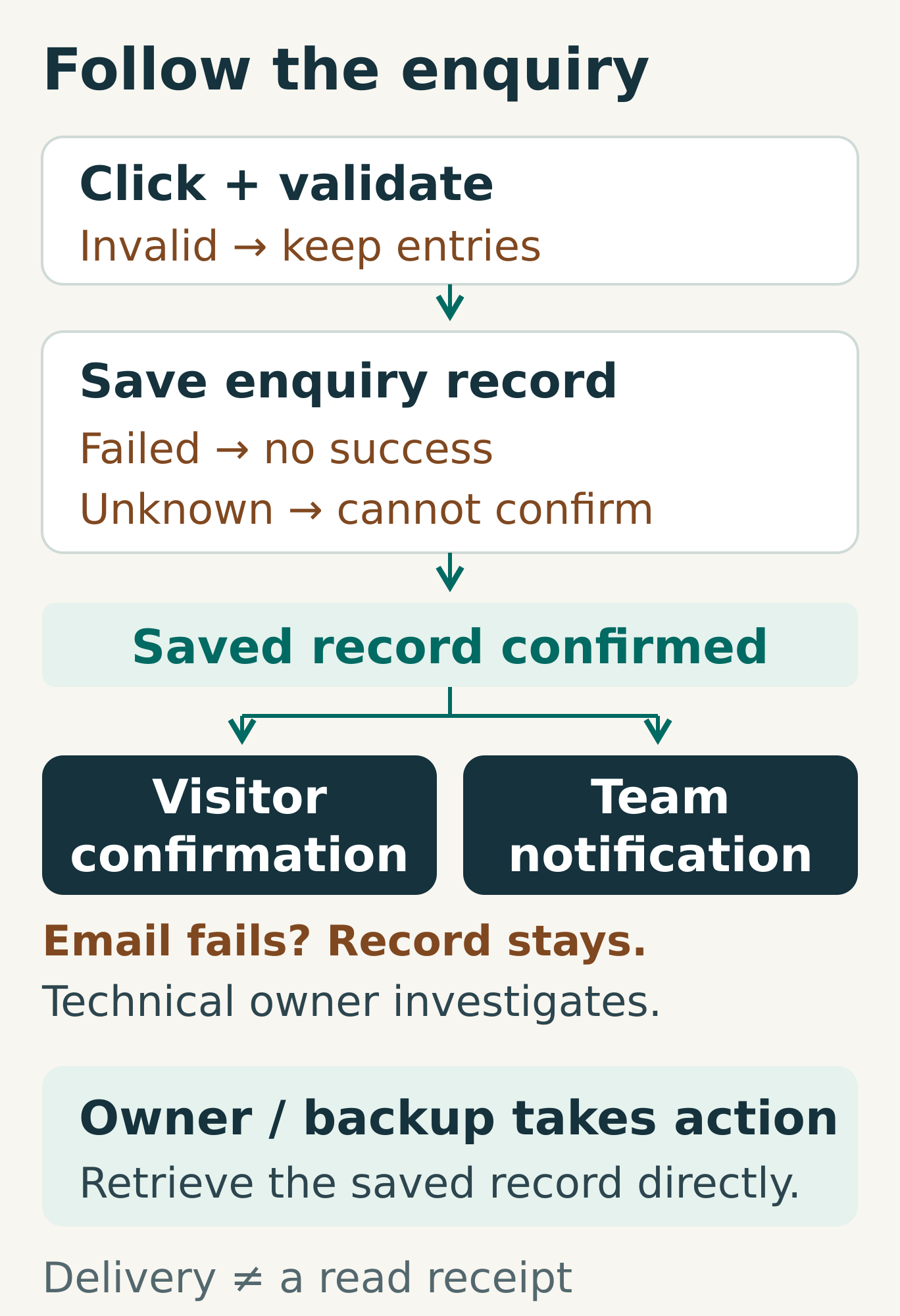
- Visitor clicks: a submission attempt has begun. Nothing is confirmed yet.
- Record is saved: the system can acknowledge receipt and show a reference if one exists.
- Team notification is delivered: an alert reaches its destination. Delivery does not prove that somebody has read or acted on it.
A suitable confirmation after acceptance might read: “Thank you. Your enquiry has been received. Reference: [reference].” Add a response-time commitment only when the team has agreed and can support it.
If saving definitely fails, explain that the enquiry was not received. If a timeout leaves acceptance uncertain, say that receipt could not be confirmed. Preserve the message and provide a verified alternative contact route. Design retries so they do not create avoidable duplicate records.
When a confirmation or error appears without a page change or focus move, make it available to assistive technology through appropriate status semantics. See W3C’s status-message guidance.
Accept the whole journey, including the failures
Run these checks with agreed test data and record the result:
- Valid enquiry: the confirmation appears only after acceptance; the saved record contains the submitted information and reaches the correct queue.
- Missing or invalid answer: the error names the field, explains the correction and preserves other entries.
- Keyboard and screen reader: fields and the button are usable; labels, errors and relevant status changes are conveyed. Follow W3C’s keyboard guidance.
- Phone and supported languages: labels, help and errors remain readable; the visitor can complete and correct the form.
- Double-click or retry: the team does not receive avoidable duplicate enquiries; a genuine second enquiry remains possible.
- Save failure or timeout: the message reflects the known state, retains useful input and offers a recovery route.
- Notification failure: simulate a failed email in the test environment. Confirm the accepted enquiry remains retrievable and a technical owner can detect the failure.
- Unclear category or absent colleague: the enquiry reaches a general queue or named backup rather than waiting unowned.
These are practical acceptance checks, not a complete accessibility or security audit.
Copy this into your form brief
Complete these lines with your sales, operations and web teams:
- First useful action: After reading the enquiry, we need to _____.
- Required information: _____, because _____. Everything else is optional, reframed or deferred.
- Acceptance evidence: The enquiry is received when _____; its reference is stored in _____.
- Business owner and backup: _____ owns the queue; _____ covers absence and unclear categories.
- Failure owner and escalation: _____ checks failed submissions or notifications; unresolved failures escalate to _____ after _____ under our agreed process.
- Visitor wording: Confirmed receipt says _____. Known failure says _____. Uncertain receipt says _____. Alternative contact: _____.
- Review evidence: Test results live in _____. The next review is triggered by _____.
For reporting, distinguish submission attempts, accepted records, notification failures and enquiries awaiting an owner. A button-click total alone cannot tell you whether the team has usable enquiries.
At your next review, ask to see one successful submission, one recovered failure and one accepted enquiry retrieved after its notification fails. Those demonstrations connect the interface to the work behind it.
Frequently asked questions
How many fields should a B2B enquiry form have?
There is no useful universal number. Keep the information needed for the first response and justify each required field. The two-required-field example here suits an illustrative general enquiry, not every service.
Should a telephone number be mandatory?
Make it required when the requested next step needs it, such as a callback. For an email-first enquiry, leave it optional unless there is another clear, explained operational reason.
Has an enquiry failed if the notification email fails?
Not necessarily. If the agreed system has accepted and saved the enquiry, the record can still be valid. Check the record separately, investigate the notification failure and ensure an owner can act on the enquiry.
Planning something similar?
Talk to Miracle